Intercept keybord on windows
Spoiler: Initially designed to prevent a child from using keyboard shortcuts, here is how to hijack events in Windows and to block some ones.
A few years ago, I discovered, like many young parents, that it is more effective to let my children play on my computer for 5 minutes on my lap (afterwards, they get bored and go play something else) than to tell them “no” for a quarter of an hour...
Unfortunately, I have also discovered, like many young parents, that children are quite efficients in discovering improbable, painful and above all impossible to anticipate keyboard shortcuts in their creative frenzy. Just like with other toys, we then spend a lot of time cleaning everything. Two examples.
- On Windows, with some graphics cards,
CTRL+ALT+←(or↑,→,↓) which allows you to rotate the screen, very funny as a joke, but not necessarily practical when you are a victim of it the first time… - Or the sticky keys (under Windows), activated by 5 successive presses of the
SHIFTkey, very practical for those who need it but frankly annoying for others (if only this pop-up which vampirizes the focus). You can disable this feature via the Control Panel, Ease of Access, “Keyboard” tab, in the “Sticky Keys” section, switch the selector to “Disabled”.
So it was initially to block the keyboard while they had fun and avoid accidents that I looked into how Windows manages the keyboard. And quickly, after very few lines of code, I had a small application disabling selected keyboard keys; no more stress when my children were doing anything, no more need to be on the lookout.
As you might expect, if we can block certain keys, we can also know which ones are used. We can then do statistics or even record the sequences in search of frequent patterns (i.e. identifiers).
So without having any illusions about the interest you will have in the matter – scientific and professional, I have no doubt – here is how to globally intercept the keyboard on Windows.
Understand the keyboard
Before getting to the heart of the matter, I would like to take a little time to describe the journey followed by the information from the keyboard to the applications. It won't take long, I promise (for details, you can see the official documentation) and that will allow us to better understand the why and how.
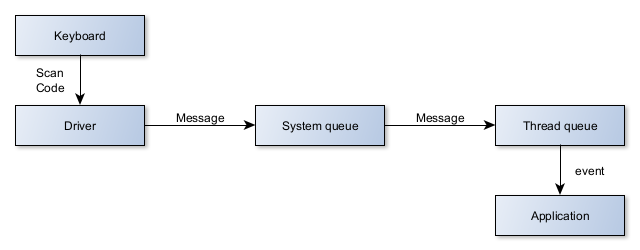
It all starts with a keyboard manipulation. A key is pressed, released and in some cases, a switch can be toggled (i.e. case of Caps Lock keys). It's very technical. Too technical in fact because each keyboard has its layout, its conventions, its additional keys. The scan code provided by the keyboard to tell us which key it is is specific to it.
Hence the interest of the drivers who are responsible for interpreting this idiomatic scan code and translating it into a more common version in an event message which contains everything necessary to know what to do with it the following components.
The event is first inserted into the system events queue which, as its name suggests, contains all the events of which the system has learned and which it will be able to manage or transfer to the appropriate party.
In this second case, the event is inserted into the event queue of the recipient thread. It will then be processed in the event loop of the thread (or of the application if it only has one thread).
For what we need, we must therefore intercept the event early enough to be global and miss as few events as possible, but still late enough to remain simple and avoid too low-level code. That’s good, Windows provides native functions for just that.
Example of a bad idea: the BlockInput function which allows you to disable keyboard inputs . Because it occurs at the thread level, so too late. Unable to block the keyboard of other applications and certain global shortcuts.
Install a hook
Installing an event hook is done via the function SetWindowsHookExA() including here is the signature:
HHOOK SetWindowsHookExA(
  int       idHook,
  HOOKPROC  lpfn,
  HINSTANCE hmod,
  DWORD     dwThreadId
);
The 4 parameters have their own interest (although for us, only the first two will be useful):
- idHook specifies the type of interception (which events will be captured and when it will take place), there is a whole list, I will give you details right below.
- lpfn, a pointer to the function that will be called when capturing the event, its signature is always the same but the meaning of the parameters can change.
- hmod identifies the DLL containing the function and which must be injected1 into the processes so that the function can be executed there. When no injection is needed, this parameter is useless (passed to
NULL). - dwThreadId identifies the thread for which we wish to intercept events, if the interception is global it can be omitted (passed to
0).
When the hook is installed, the function returns us an identifier (which we will use next). On failure, it returns NULL (and error information is available via GetLastError ).
Regarding the keyboard, we can intercept events before and after they pass through the thread's event queue:
- Before (
idHook = WH_KEYBOARD_LL), the interception is then called low level and necessarily global since it takes place before the event is transferred to its destination, in this case, the code is executed in our application and there is no need to inject any DLL (thehmodanddwThreadIdparameters can be omitted). - After (
idHook = WH_KEYBOARD), the interception is then done in the process which manages the event and can concern a thread or be global, in this case, the code is executed in the targeted process and the DLL will have to be injected (thehmodanddwThreadIdparameters take on their full meaning here).
Since we want to capture all events, including system keyboard shortcuts (like ALT + TAB), we will place our hook before the queue via the constant WH_KEYBOARD_LL. Our code will therefore look something like this:
#include "windows.h"
#include "Winuser.h"

LRESULT CALLBACK MyKeyboardCB(int nCode, WPARAM wParam,LPARAM lParam) ;

int main(int argc, char *argv[])
{
    HHOOK h = SetWindowsHookExA(WH_KEYBOARD_LL, MyKeyboardKB, NULL,0) ;
    if (h == NULL) {
        return 1 ;
    }

    // Do Stuffs
Uninstall the hook
When it is no longer needed, or before your application is finished (which then amounts to the same thing), it is polite to uninstall the hook. Nothing is documented about what would happen if you don't uninstall it, so we can only imagine horrible things.
To uninstall your hook, you should call the function UnhookWindowsHookEx() which takes as parameter the identifier of the previously installed hook. To continue the previous code, here is how it would end:
    // Do Stuffs

    UnhookWindowsHookEx(h) ;
    return 0 ;
}
The return value (boolean) tells us about the success of the process, in my case, since I left the application, I did not process it.
Block event
We declared it in the code example, it is now time to define it, the function which will manage the keyboard events. For your information, here is his signature:
LRESULT CALLBACK LowLevelKeyboardProc(
  _In_ int    nCode,
  _In_ WPARAM wParam,
  _In_ LPARAM lParam
);
By catching the low level event (since we used the WH_KEYBOARD_LL flag), the parameters have a special meaning (details are provided in the LowLevelKeyboardProc() of which here is the general meaning:
codetells us if we can handle the event (it is0) or if we should ignore it and pass it to the following hooks (it is negative). This is of course a design error but it is often like that with aging systems.wParamtells us about the type of keyboard event (key pressed or released).lParampoints to a structure containing the event details.
When we have finished processing the event and/or want to pass it to the following hooks, we are asked to call the function CallNextHookEx() – with the same parameters that were provided to us and return the result it provided, as if we did not exist. If you don't do this, other horrible things could happen (to other applications that won't have access to the events).
We can also choose our own return value. 0 meaning that the event can continue its journey to the applications. Any other value (i.e. 1) meaning that the journey must stop here, the event cannot go any further.
So we have everything we need to block the keyboard with the following hook:
LRESULT CALLBACK MyKeyboardCB(int nCode, WPARAM wParam,LPARAM lParam)
{
    if (nCode >= 0) {
        // Block every keyboard event
        return 1 ;
    }

    return CallNextHookEx(NULL, nCode, wParam, lParam) ;
}
Limitations: Since this hook takes place around the thread queue (and not inside the Windows system kernel), it cannot block CTRL + ALT + DELETE and will be inactive on the login screen.
Filter event
Rather than blocking everything stupidly, which is not very useful I admit, I suggest to add a little filtering. We let certain keys pass, and we block others2.
To do this, we will read the third parameter (lparam), a pointer to the structure KBDLLHOOKSTRUCT, which contains a vkCode field with the virtual code of the key (an identifier common to all keyboards). The official list will explain them all, you can also write them on the console to see which key gives what value...
In my case, I mainly focused on certain special keys which can have consequences (TAB, ALT,…). It’s up to you to adapt the code according to your needs…
LRESULT CALLBACK MyKeyboardCB(int nCode, WPARAM wParam, LPARAM lParam)
{
    if (nCode == 0) {
        // Cast of third parameter to its real type
        KBDLLHOOKSTRUCT * event = (KBDLLHOOKSTRUCT *) lParam ;

        switch (event->vkCode) {
        case VK_TAB:
        case VK_MENU:
        case VK_SNAPSHOT:
        case VK_HELP:
        case VK_LWIN:
        case VK_RWIN:
        case VK_APPS:
        case VK_SLEEP:
            return 1 ;
        }
    }

    return CallNextHookEx(NULL, nCode, wParam, lParam) ;
}
And There you go !
In about 40 lines of code, you have a small program that blocks arbitrary keyboard keys. It’s up to you to imagine what happens next3.
While waiting for other articles on this theme, here are some articles that may interest you…
- Shellcode for Windows 10
-
6 janvier 2020 Because there is not just Linux in life, we’re going to take a look at Windows 10 for a new article on making shellcodes.